
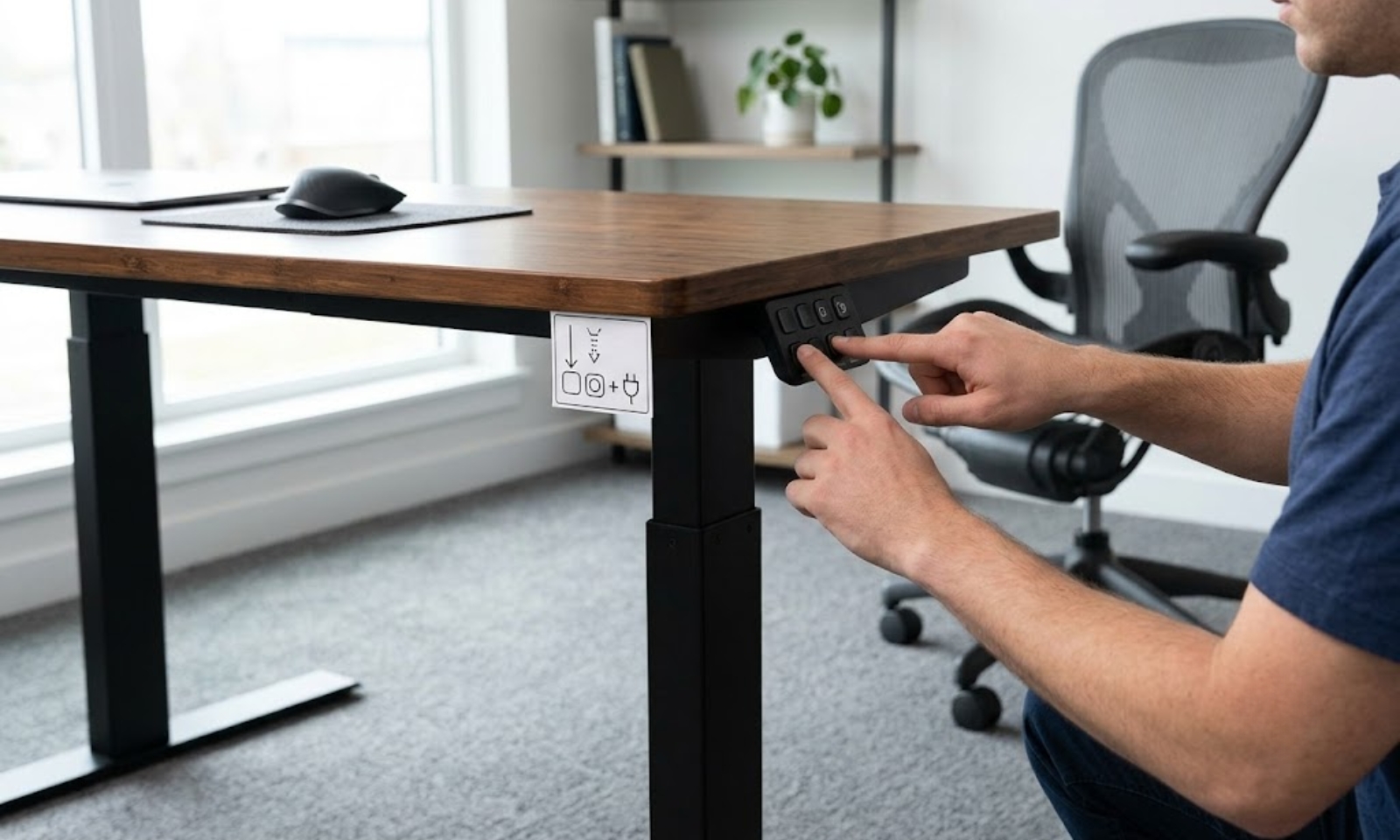
How to Reset a UPLIFT Standing Desk: Step-by-Step Guide
Many people spend long hours at their desks, making comfort and flexibility more important than ever.
A height-adjustable desk helps reduce strain, encourages movement, and creates a healthier workspace throughout the day.
The UPLIFT Standing Desk is one of the most popular choices for modern offices and home workspaces.
It offers an impressive height range from 22.6 inches to 48.7 inches, making it suitable for users of different heights and working styles.
However, like any electric standing desk, it may occasionally need to be reset to restore normal operation. This step-by-step guide will show you how to reset your UPLIFT Standing Desk quickly and safely.
Even the best desks, like the UPLIFT Standing Desk, sometimes need to be reset.
When the desk stops working, it can be bad for your work and your back. We are sharing the tips so you can reset your desk yourself.
Key Takeaways
- Resetting your UPLIFT Standing Desk is a simple fix for most movement and calibration issues.
- Always ensure the desk is clear of obstructions for smooth and safe resetting.
- Most errors are caused by power interruptions, loose cables, or sensor activation.
- A proper reset helps restore motor balance and correct height adjustment problems.
- Regular maintenance and cable checks can reduce the need for frequent resets and extend desk lifespan.
Understanding the Electric Workstation Mechanism
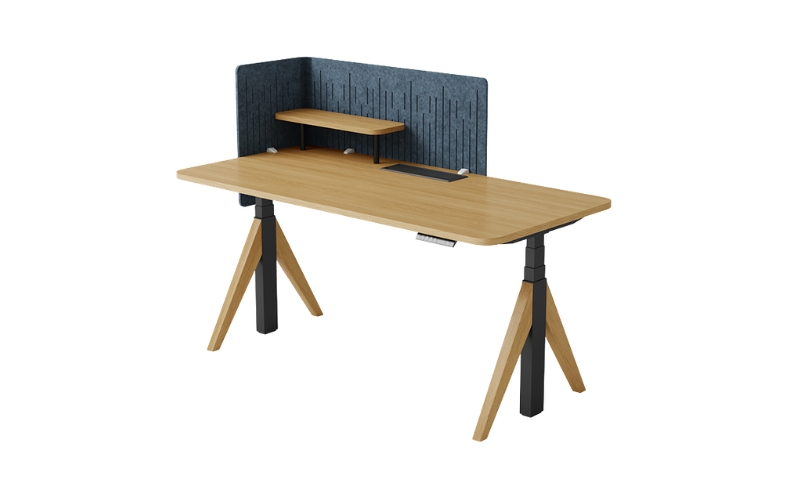
To troubleshoot a standing desk like a pro, it helps to know how your desk operates. Manual desks use a hand crank to raise and lower.
In contrast, an electric sit-stand desk uses synchronized motors hidden inside the legs.
A central control box acts as the brain of the desk. It sends power to the legs so they rise at the exact same speed. The keypad on your desktop sends commands through control cables.
Since everything runs on digital signals, a small power glitch or a loose wire can make the desk freeze as a safety feature.
Because of this, resetting an electric standing desk base simply clears the system’s memory and restores it to a perfect balance.
Why Does My Desk Need a Reset?
Your desk has built-in software to protect its motors. It will stop moving or show an error code under certain conditions:
- Power Outages: If you lose power or unplug the cord while the desk is moving.
- Uneven Legs: If the control box feels that one side is higher than the other.
- Frozen Screen: If the buttons light up but the desk will not move.
- Error Codes: If the screen flashes letters like “ASr” or “RST”
- Stuck at the Bottom: If you face the uplift desk not going up glitch, where the desk only moves downward.
Step-by-Step: UPLIFT Desk Reset Instructions
Before you start, make sure your area is clear. Take everything from under the table. Remove chairs, bins, and drawers. This is because the desk needs to be lowered to its lowest point.
The Quick Desk Reset Process
- Follow these simple uplift desk reset instructions to resolve the majority of technical glitches:
- Make sure nothing is in the way as the desk goes down.
- Sustain pressure on the DOWN arrow for approximately 10 seconds.
- Cease pressing when the interface displays “ASr” or “RESET.”
- Re-engage the DOWN button. The frame will dip slightly, rise, and then settle into place.
- Release the keypad. Your workstation is now properly calibrated and functional!
Fixing a Desk That Will Not Move Up
Many users run into a specific issue where the uplift desk does not go up, which happens out of nowhere.
The desk might move down perfectly fine, but it gets stuck when you try to raise it. Usually, this happens because the safety collision sensors think an object is in the way.
To fix this, first remove any heavy weight from the desktop. Next, try a deep power cycle. Unplug the desk from the wall outlet and wait for 60 seconds.
Then, plug it back into a working outlet. Finally, run the Quick Desk Reset steps listed above. This process resets the sensors and gets things moving again.
Troubleshooting for Electric Standing Desk Models
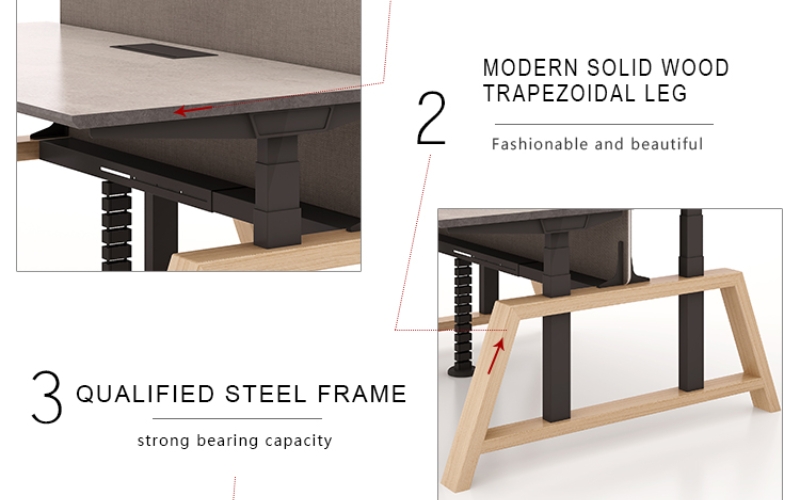
When you need to reset your sit to stand desk, you have to make some small changes depending on the keypad. The UPLIFT desks have different keypad types. Let’s see how to handle each UPLIFT desk keypad.
- Advanced Digital Keypad
This UPLIFT desk keypad has buttons for storing numbers. It also has a screen that shows text. To reset the UPLIFT desk, hold the button until the screen flashes “ASr.”
When you see “ASr” on the screen, release the button. Then press the button again right away. The UPLIFT desk will go down to the floor, come back up, and make a beeping sound.
- Advanced Paddle Keypad
This UPLIFT desk model has a button panel. To reset the UPLIFT desk, pull the paddle down and hold it. The screen will show “RESET.”
Keep holding the paddle until the UPLIFT desk is done moving. It will go up and down, and the error will be cleared.
- Basic Keypad
This UPLIFT desk keypad is simple. It only has up and down buttons. There is no screen on this UPLIFT desk keypad. For this model, you have to get the timing right. Hold the button for 10 whole seconds.
Watch the UPLIFT desk closely. You will see it twitch a little, which means it is ready. Then hold the button again to finish the reset cycle.
Quick Fixes for Error Codes
Use this guide to solve the errors displayed on screen.
| What You See | What It Means | What to Do |
| “E01” or “E02” | The motors are too hot. | Let the desk rest for 20 minutes without touching the buttons. |
| “E07” to “E12” | A leg cable is loose. | Check the motor cables under the desk. Unplug them and plug them back in securely. |
| Uneven Desktop | The legs are out of sync. | Unplug the power cord, wait a minute, plug it back in, and do a quick reset. |
| No Power at All | There is a loose power cord. | Make sure the cord is tight in the wall and the control box. |
Motor Duty Cycle
To keep the electronics from getting too hot, the motors have a rule they must follow.
The motors are made to work for a time, and then they need to rest. They can work for 2 minutes. After that they need to rest for 18 minutes.
If you change the height settings on the motor duty cycle, many times the desk will stop working until the motor duty cycle cools down.
Just let the Motor Duty Cycle have a 20-minute break and the Motor Duty Cycle will work properly again
Comparing UPLIFT to Other Popular Brands
It helps to see how other desks handle resets. This shows why UPLIFT has such a reliable system.
- The Costco Standing Desk
Costco desks often use a layout called the Haller wire system. To reset them, you must unplug the wire with the prongs.
Next, you find the H2 button on the screen. You press it to move the desk to its baseline height.
Finally, you plug the wire back in to finish. UPLIFT is simpler because you do not have to pull wires apart just to run a standard reset.
- The Varidesk System
Varidesk frames use a text prompt called RST. You hold the down button for 5 seconds to see it. Then, you let go for 2 seconds.
After that, you hold it down again until the screen reads 25.0. This marks the end of the process. UPLIFT saves you steps by automating this path once the reset starts.
- The Fully Jarvis Desk
Fully Jarvis desks use a process very close to UPLIFT. You lower the desk all the way and let go. Then, you hold down until the screen says RESET.
Finally, you hold it one last time until it settles. Since UPLIFT now supports many former Jarvis users, these instructions work perfectly for both setups.
Finding the Root Cause of Desk Failures
If you frequently find yourself searching for how to reset uplift standing desk guides, you might have an underlying issue.
A reset fixes the software, but it does not fix bad habits. Let’s look at why your desk keeps locking up.
- Hidden Obstructive Objects
Check your walls. Mounted shelves can block a desk as it rises. Filing cabinets can crush under a desk as it lowers.
When the desk hits these items, the anti-collision system stops the motor. This instantly triggers a lockout.
- Loose Structural Hardware
Look under your desktop. Are the frame screws tight? Over time, shifting your desk can loosen the hardware.
If the frame wobbles, the legs will experience uneven friction. The control box detects this as a motor failure and stops moving.
- Poor Cable Management
Cables expand and contract as the desk moves. If a cord is too short, it will yank on the control box at max height.
This unseats the pin connections. The desk will immediately stop moving upward, causing the “uplift desk not going up” error code to appear.
Mastering the Advanced Keypad Settings
Once you complete your basic uplift standing desk troubleshooting, you can explore the advanced programming menu. These steps help prevent errors and customize your desk’s movement patterns.
- How to Program Height Presets
Do you want to save your perfect sitting and standing positions? The process is very direct. First, move the desk to your preferred height.
Next, press the “M” button. The screen will flash. Finally, press a number button to assign that height. Now, your desk returns to this exact spot with a single press.
- Calibrating the Digital Height Display
The number displayed on the screen occasionally deviates from reality. Adding thick casters or wheels to the legs causes this.
Lower the desk all the way to fix this. Next, hold the “M” button until the screen flashes. Use the up or down arrows to enter the true measured height. Press “M” once more to lock it in.
- Managing Anti-Collision Sensitivity
Your UPLIFT desk is highly intelligent. It uses an internal sensor to detect hard surfaces. However, sometimes it is too sensitive.
If you have a heavy desktop computer on one side, it might trigger false stops. This causes the frustrating uplift desk not to go up in a loop.
- Adjusting the Sensitivity Levels
You can manually adjust how hard the desk looks for collisions. First, hold the DOWN button until the desk enters reset mode.
Next, press and hold the UP button for about 5 seconds. The screen will display a code like “L2” or “L5.”
- L1 represents the lowest sensitivity setting.
- L9 represents the highest sensitivity setting.
Use the arrows to choose a middle setting. This stops false alarms while still protecting your office furniture.
- Setting Upper and Lower Limits
Do you have a low window sill behind your desk? Or perhaps a printer sits underneath it.
You can set physical limits to prevent the desk from traveling too far. This feature reduces the need to constantly reset electric standing desk systems after accidental crashes.
- Creating an Upper Limit
Raise the desk to the maximum safe height. Next, press the “M” button once. Follow this by pressing the UP button.
The display will flash “L-1.” This means your upper limit is set. The desk will never move higher than this point during normal use.
- Creating a Lower Limit
Lower the desk to your safe baseline height. Next, press the “M” button once. Follow this by pressing the DOWN button.
The display will flash “L-2.” This means your lower limit is set. This completely eliminates the risk of crushing items beneath your workspace frame.
Troubleshooting Hardware and Cable Issues
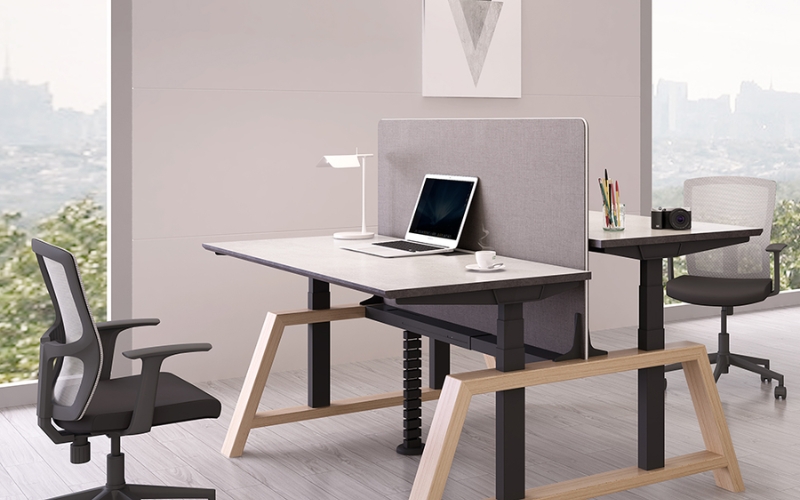
When a software reset fails, physically inspect your components. The modular design of UPLIFT makes hardware checks straightforward.
- The Leg Cable Tug Test
Look under your desk and locate the control box. You will see two main wires labeled M1 and M2. These run directly to the leg motors.
Unplug them completely. Check the pins for dust or bends. Plug them back in until you hear a loud, crisp click. A loose connection here is the primary cause of uneven leg extensions.
- Testing the Power Supply Stability
Are you using a cheap power strip? High-power dual-motor desks draw significant current when lifting heavy loads.
If your power strip cannot handle the demand, the voltage drops. The desk immediately powers down to protect its circuit board.
Tips to improve desk life
Organize Your Wires: Use the FlexMount Cable Manager. This will stop cords from getting tight when the desk moves up or down.
Balance is important: UPLIFT desks carry a lot of weight. Place monitors near the center. This keeps the frame level. You should also check things regularly.
Check the Plugs: Look at the cables under the desk every month. Make sure they are still plugged in tight.
Some things can hurt your desk. Keep coffee and cleaning sprays away from the keypad and control box. This will keep it dry.
Clean the leg columns: Wipe away dust on the legs. This helps them move smoothly. It also makes the motor longer.
To Conclude
Resetting your UPLIFT Standing Desk is usually a quick process that solves most movement and calibration issues.
By following the correct reset steps, checking the cables, and regularly maintaining your desk, you can keep it running smoothly for years.
If you’re looking for reliable, high-quality office furniture with advanced features, durable construction, and dependable after-sales support, explore Meet & Co Furniture’s latest collection.
From height-adjustable desks to complete workspace solutions, find everything you need to build a comfortable and productive home or office setup today.
Also see:
FAQs
Is it safe to reset my UPLIFT Desk while it has equipment on it?
It is safe to reset your UPLIFT Desk while your office gear, such as monitors and supplies, is still on it. Just make sure to clear objects or things that stick out too far. This helps the legs calibrate correctly.
What should I do if my UPLIFT Desk reset keeps failing?
Check that all cables under your UPLIFT Desk are securely connected if the reset does not work. If the problem persists, note the error code on your keypad and contact support.
You can easily replace a keypad or cable thanks to the desk’s modular design, rather than replacing the whole unit.
How often should I reset my UPLIFT Standing Desk?
Only reset your desk when it displays an error code, loses calibration after a power interruption, or stops moving normally. Routine resets are not necessary.
Why is my UPLIFT Standing Desk only moving down?
This usually happens when the desk requires recalibration or the anti-collision system has been triggered. Perform a complete reset and check for cable connections or obstacles.
Can I reset my UPLIFT Standing Desk without removing everything from the desktop?
Yes. Most office equipment can stay on the desk during a reset, but remove any excessive weight and ensure nothing blocks the desk’s movement to ensure safe calibration.